InShortViral: Today I’m going to share you an app which will help you to scan images.The App named Camscanner acts as a portable scanner

You must have been holding your frustration mimicking something written on a chit to you android phone, I bet it was the tiresome thing that could ever happen to anyone. Scanning documents when there is needed Urge might be a problem for many of us. But this simple matter might be a headache for many because Scanner is very rarely present in today’s smartphone. So you need a portable scanner straight away.
You can take Photographs of any document, but that was not enough because your phone doesn’t offer the facilities of Optical Character Recognition which manages to converts scanned letters into documents such as PDF of TXT files. Everyone out there needs to install a third-party app to scan an image into a text format.

How To Convert Your Android Device Into A Portable Scanner


Today I am going to share you something which will be very beneficial to most of us. I want you to meet the App named Camscanner. Guess what it was an android app who manages to offer the feature of Optical Character Recognition in your Smartphone in other words it scans scans the images with the help of your Phone camera and it creates the TXT file of the scanned images. In short it acts as a portable scanner.

How to use Camscanner As a Portable scanner for your Phone?

There are few easy steps which you must follow if you want to convert your android smartphone into a portable scanner. But let me clear you one thing first it was a third party app, but there is no risk of your privacy being broken because this app is from trusted developers of Android. Follow the Steps clearly
1Before installing Camscanner in your android Smartphone first Reboot your phone and then install Camscanner by clicking HERE. Once installed Launch the app in your Android handset.
2Now you will be redirected toward the Login/Register Screen. Register if you are not registered and in case if you already registered simply login with your User Id and Password. This is a paid app. But Camscanner is giving away the 30days free service for new users.
3If you completed the registration part, Camscanner will be ready to use you can see the camera icon on the downside of your display you need to take your camera closer to document in order to focus the words.
4After the camera adjusted you need to click on Tick option that is on a right side(down) of the app. It will automatically start scanning and saving your document in TXT or PDF formats. All done.
5Now you can easily transfer your scanned files to your computer by locating its destined folder.

The motto behind this article is to provide you useful information that we are aware of actually this is a very easy trick, I am sure this article might help you in some time. Camscanner is a paid version app, but it was providing a 30days free to use trial period I am sure you will be downloading this app right now and making full use of it.

InShortViral: How to unlock your computer with the help of your android smartphone, you will need a Rohos Logon Key software installed both on your Android and Computer to gain access you computer.

There is numerous article on the internet concerning how to secure your PC while you are not at the computer, Some of use even try to search that is there any procedure to unlock your PC with the help of the smartphone? But let’I tell you there is an easy method out there by which you can easily Unlock your computer with the help of your Android smartphone.

How To Unlock Windows Computer from Android/iPhone

With this method you need your smartphone to unlock your computer after logging in into your windows login screen and for that you have to connect your smartphone with your PC to identify the right authentication to PC to unlock it. So read out the below steps proceed.
It is possible to access your computer without the login screen. And the process I am going to share today might be the coolest one because it was a two-step authentication process in which some extra security divisions are coming forward to preserve your computer. And the big part is that it was an easy process.

Steps To Unlock Window Computer from Smartphone:

You need a Software Named Rohos Logon Key installed in you computer as well as Smartphone to unlock your computer with the help of Smartphone. Let me tell you Rohos was the third-party tool but it was safe as many professionals trying this software to unlock computer with the help of their smartphone. So here is the process.
1. First of you need to download the Rohos Logon Key Software in your device which you want to pair out with smartphone.


3. Now there click on Options there and set the settings as shown on the screenshot below.
4. After selecting all the options click on ok.

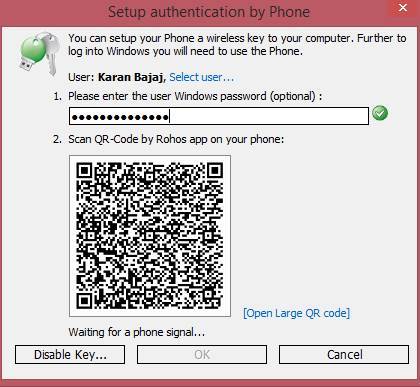
5. Now select the setup a key there and the select the QR code method to verify your key there.
6. Now download the mobile app from the above link and scan the QR code from that app displaying on the screen and your mobile will detect your PC.

7. Thats it you are done now your pc is authenticated with your smart device and every time after unlocking from windows screen you will need your smart device to unlock the second authentication process.
So above we have discussed about Unlock Window Computer from Android/iPhone Smartphone, this is a very cool way to secure your computer as if someone get to know your login password you computer will not get open until it get the security key that is your smartphone that will be always with you. Hope you like our work, do share our cool stuff with others too. leave a comment below if you have any related queries.


Till now you might had read lots of tutorials to hack wifi network, but I am sure you never get satisfied results. As some of them requires lots of large files and some rooted android, but rooting android voids android warranty and i am sure most of user don’t want that. So here is the best alternative in which you don’t need to download bulky files or to root your android. The only thing you will need is a cool android app that works on both rooted and unrooted android, and with that you can actual get the security key of any wifi network with the pin injection method. So have a look on complete guide discussed below to proceed.
Note:- This content are intended for Security Research Purpose and should not be used illegally.

How to Recover WiFi Password On Android (Without Root)

The only thing you will be needed that is your Android device and an Application that we are discussing it right here, at last the important thing to note is, this method will only work on Android version 5.0 (lollipop) or above. So follow up some simple steps below to proceed.

Steps To Hack Wifi Password Using WIFI WPS WPA TESTER App:

1. First of all you need to install this application WIFI WPS WPA TESTER in your android (recommended).
2. Now simply launch the app from app drawer and you will see app will start scanning all the wifi networks around you.


3. Now you will see the list wifi networks the application found. Now only thing you to do here is checking the color of the right side lock, if the lock is green colored that means the wifi is hackable and if red then its not.
4. Now when you get the network with green lock sign at right then simply tap on that network.
5. Now a info popup will appear and there simply click on connect option.

6. Now on the next popup you will have two option Root or No root. Now simply select theNO ROOT method there.

7. Now on the next popup you will see list of Pin which will help to get into the wifi networks, choose one of them and select Connect(root) option.

8. Now pin attack will start and it will take some seconds to complete.

9. If the PIN entry works successfully then you will see the network password that you will simply copy and then connect to the network.

10. If the Pin doesn’t work then you will see error message and at that time you need is totry the other PINs and i am sure that one of them will definitely work for you.
11. That’s it you’re done, now you have the wifi password of the network and can easily use it to connect to that network with any of the device that you have.

Watch Video:


So above is all about Recover WiFi Password On Android Without Root. With this cool method you can easily crack wifi password of any network without rooting your android by using a cool app. Hope you like this, keep on sharing. If you still facing any problem them simply comment below.


ime to block all the shitty ads that come in front of you while watching videos in Youtube in your android

many of rooted android users must use the Xposed installer in your android device that was helping user to play out lots of tweaks in their rooted android. And today we will be using the same tweaker for a very cool purpose that is blocking ads in youtube in your android device. As while watching your favorite video and getting ads before, inbetween and after video completion is very irritating. That is why we are here with cool trick that will overcome this problem in your android and you can easily watch youtube videos without any ad display on it. So follow the steps below to proceed.

How To Block Ads On Youtube In Android

The method is very simple and will work with rooted android and after rooting your will be using Xposed installer app in your device to resolve this problem in your android. So follow up some simple steps below to proceed.

Steps To Block Youtube Ads On Android:

  1. First of all you need to root your android device, because the app that we are going to discuss right here only works on rooted android and for the visit Root Any Android.
  2. Now after you rooted your device download and install the app Xposed Installer.
  3. After installing this app you have to reboot your android to make this app work correctly in your android.Block Youtube ads1
  4. Now you need to download a module that is Youtube Adaway in your android.
  5. Now go to Xposed installer app and then enable this module for your device.
  6. Now go to Youtube Adaway app and simple click on Hide ads and also you set some other options like hiding some other non useful media from the youtube app in it.Block Youtube ads2
  7. Thats it you are done, now you can easily watch your favorite videos in Youtube Official app in your android without seeing any ad on it.
In our previous post we discussed about How to Play YouTube Videos in Background Without Rooting Android. With this method you can easily play your favorite youtube videos in background and this all without rooting that is without voiding your device warranty. So must try out this cool method in your android and have fun.
So above is all about Block Ads On Youtube In Android. With this method you can easily remove all ads from the official youtube app and can have better video watching experience in your android device. Hope you like this cool solution, do share with others too. Leave a comment below if you have any related queries with this.


Here is a way to How To Increase RAM Using USB/Pendrive.


Iknow it’s old trick but still some people aware of it that’s why i’m sharing it with you all. As you all know what is basic functionality of RAM in your PC/Laptop as the more RAM means more speed and faster your system’s speed.
For gaming purpose one need more RAM. What if you don’t have enough money to buy new RAM and aslo sometimes there is no extra slot on your motherboard to setup new RAM also somtimes motherboard do not more RAM that you need so, then how will you upgrade you PC/Laptop’s RAM ?You need to buy a new PC/Laptop ? Well the answer is no, Today, We will share some tips regardingHow to Increase RAM Using Pendrive in Windows.

How To Increase RAM Using USB Pendrive

Steps to Increase RAM Using USB Pendrive:

  1. First of all connect your USB/pendrive into your PC/Laptop’s USB port.
  2. Now in the desktop just right click on the My Computer icon and then click on theProperties.
  3. After this you will have to click on Advanced Tab then click on Performance.
  4. Now click on Advanced and then click on Virtual Memory.
  5. Now select you pendrive/USB icon and then click on Custom size.
  6. After that you have to view the memory available in your Pendrive/USB and note it down and click on OK.
  7. Restart you Laptop/PC and Enjoy the fast speed of your system :)
That’s it you have successfully increased the RAM of you system using USB/Pendrive. If you like this post share it with your friends ! 
:)


Time to get your conversation on your android by moving from one android to another with the method discussing right here
Whatsapp is one of the most widely used messaging app in android & iPhone Smartphone till today. It has various features like real time messaging, media sharing (images, videos etc), group chatting and so on. Apart from this, Whatsapp also offers some hidden features that most of the people don’t know. And one of the most important is the conversation backup and its portability. That is you can use this backup file to get your conversation on any android device where you want to retrieve your conversations. And in this post we will be discussing on the same that is the method to move your chats from your old android to your new one. So have a look on complete method discussed below to proceed.

How to Move Whatsapp Conversations Of One Android To Another

The method that we are going to discuss right is simple and straight and you just need to copy paste and nothing else and you will get conversation from one android device to another. You just have to move the backup file of conversation that is there is database of your whatsapp to the device where you want to get all thar chats. just follow the below steps to proceed.

Steps To Move your Whatsapp Chats From One Android To Another:

  1. First of all go to your wahtsapp settings -> conversations and then backup now to backup all your chats records to the current time.
  2. Now in your android device you need to do is go to the Internal storage and then navigate to the folder Whatsapp in your file manager.
  3. Now there you will find Database folder, you just need is copy that folder and then paste in external sd card to transfer conversations from your current device to any other.Database1 Techviral
  4. Now put that External Sd card in your another android where you want to get your chats
  5. In that android uninstall the whatsapp if already there and then go to Whatsapp folder in internal storage and rename Database folder to Database1.
  6. Now copy the Database folder from external sd card and then paste in the Whatsapp folder of internal Storage and this folder will contain your chats of your previous android.Database2 Techviral
Now install whatsapp and this time when you see the Restore button simply click on that button and all your chats will get retrieved in your whatsapp.


  1. So above is all about Move Whatsapp Conversations Of One Android To Another, With this method you can easily move all your whatsapp chats from one android to another and this all without any third party application and just by copy and pasting some files that contains your chats records. Hope you like this cool solution, do share with others too. Leave a comment below if you have any related queries with this.
How To See Someone Hidden Friends On Facebook
With more than billions of user facebook is one of the biggest social media network. In this network there are billions of user profiles and all users have lots of friends in their profiles. And the friend hiding feature of Facebook allow users to only display mutual friends in friends list. So in that case you are unable to check the another friends of that person. But i have a way by which you can check hidden friends you just need is one mutual friend of the person whose hidden friends you want to see. So we are here with How To See Someone’s Hidden Friends On Facebook . The method is far simple than you are thinking. Just follow the below steps to proceed.

How To See Someone’s Hidden Friends On Facebook

In this method you will use google chrome browser to reveal the secret friends of any of your friend. A chrome extension will work for you for resolving this issue. You just have to follow some of the simple steps discussed below.
Steps To See Someone’s Hidden Friends On Facebook:
  1. First of all download and install latest version of Google Chrome Browser in your computer.
  2. Now install the extension Facebook Friends Mapper from here.1
  3. Now this extension will get added to your google chrome browser.
  4. Now login into your facebook account and open the profile of friends whose hidden friends you want to see.
  5. Now click on friends option  there in your friends profile.
  6. Now you will see a reveal friends section there which will only appear when you had added the above extension. Just click on it.2
  7. Now it will start scanning the friends and will display all the hidden friends of that person.
So above is all about See Someone’s Hidden Friends On Facebook. Now by this method you can easily check someone’s friends that he/she had hide from all other friends and you can have fun with this by shocking them that you know their friends that they had hidden. Hope you like this cool facebook trick, don’t forget to share it with your friends and leave a comment below if you need our help at any step.

Welcome

Welcome

Categories

Blog Archive

Powered by Blogger.